Skode CRM
Send CRM conversions to Facebook (Meta Conversions API)
Tell Facebook which leads became customers, so its ads find you more people who buy.
In review7 min · for admins
These steps were written from the product itself but haven’t been walked through in the live app yet — so a button name may differ. We mark a guide verified only after a person has done every step on the date shown.
Facebook only knows when someone fills in a form. Tell it which of those people actually became customers and it stops optimising for form-fills and starts finding you more people who buy. Skode CRM sends that back for you — from the stages you choose, for the profiles you choose. About six minutes, and you’ll need the Facebook account that runs your ads.
Open Meta Conversions API in Skode
Go to Settings → Integrations, find the Meta Conversions API card and click Connect. You need the Manage integrations permission.
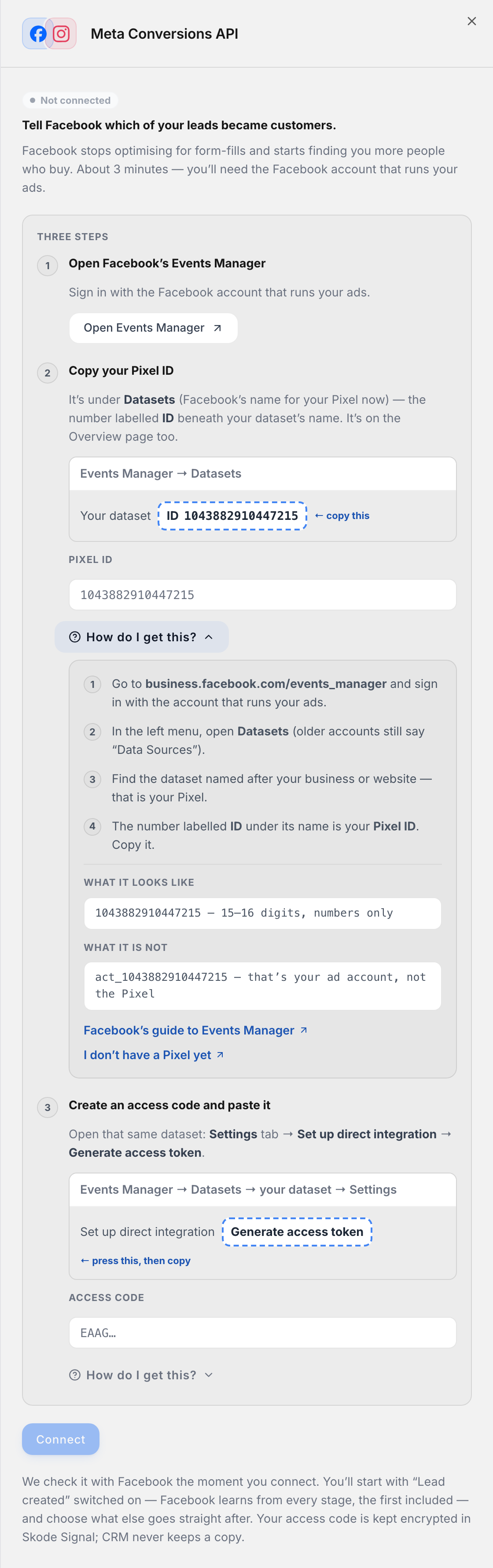
Open Facebook’s Events Manager
Click Open Events Manager in the panel (or go to business.facebook.com/events_manager). Sign in with the Facebook account that runs your ads. In the left menu, open Datasets — that is Facebook’s name for your Pixel now; older accounts still say Data Sources.

Copy your Pixel ID
The number labelled ID under your dataset’s name is your Pixel ID — 15 or 16 digits. Copy it and paste it into the Pixel ID box in Skode. It is not your ad account number (that one starts with act_).
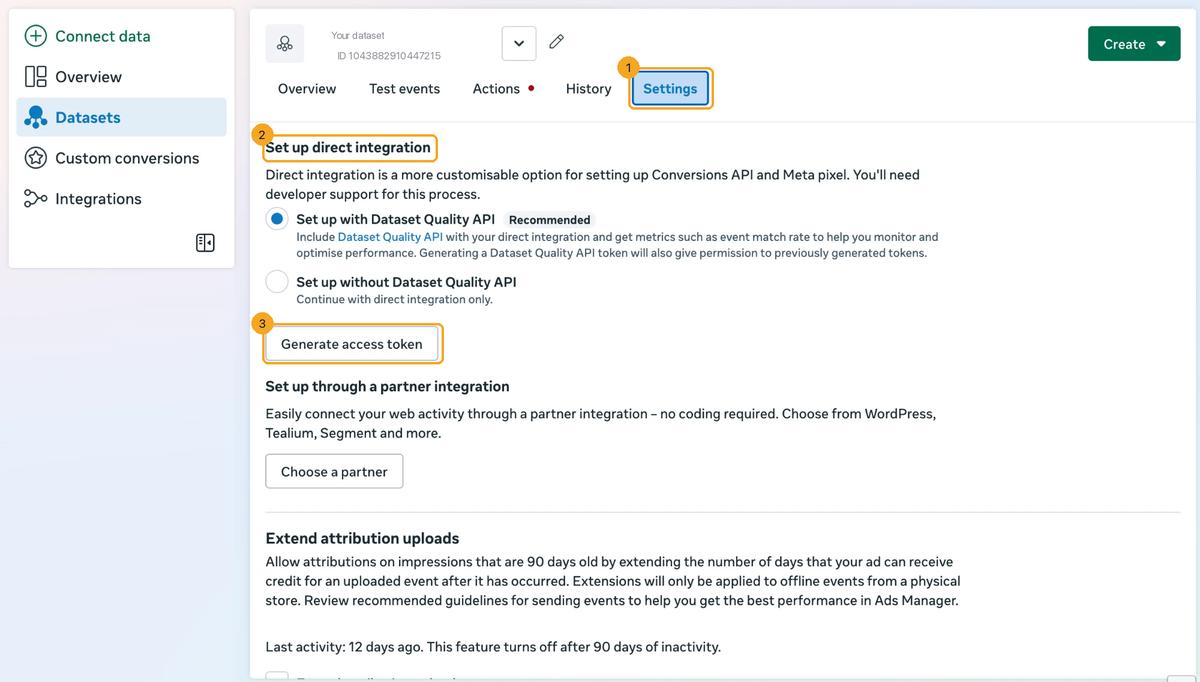
Generate an access token
Click your dataset, open its Settings tab and scroll to Set up direct integration. Leave the “Dataset Quality API” choice as it is and click Generate access token. If a “Select datasets” dialog appears, keep your dataset selected and confirm.
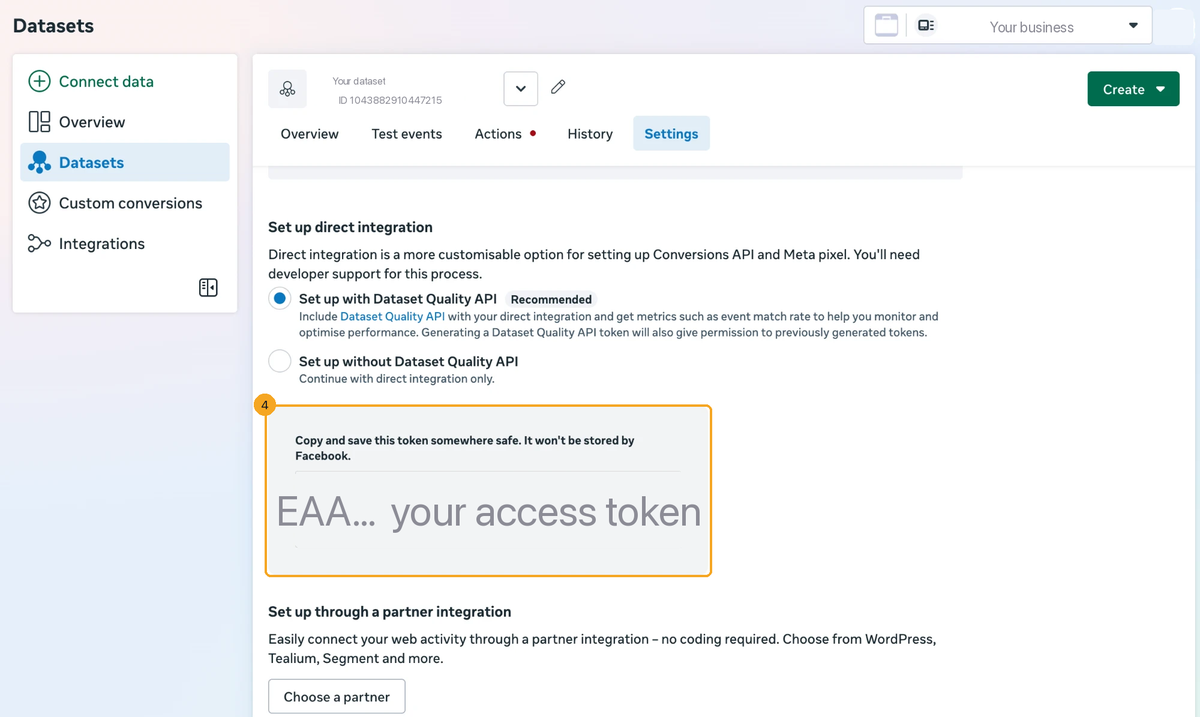
Copy the token
Facebook shows the code once, in a grey box: “Copy and save this token somewhere safe.” Select all of it — it starts with EAA and runs to about 200 characters — and copy it. You won’t need to save it anywhere yourself; Skode keeps it encrypted.
Paste the token and connect
Paste the code into the Access code box in Skode and click Connect. Skode checks it with Facebook before saving and shows you the Pixel it connected to. The code is encrypted and never shown again — if you ever need to, use Replace access code.

Choose what CRM sends
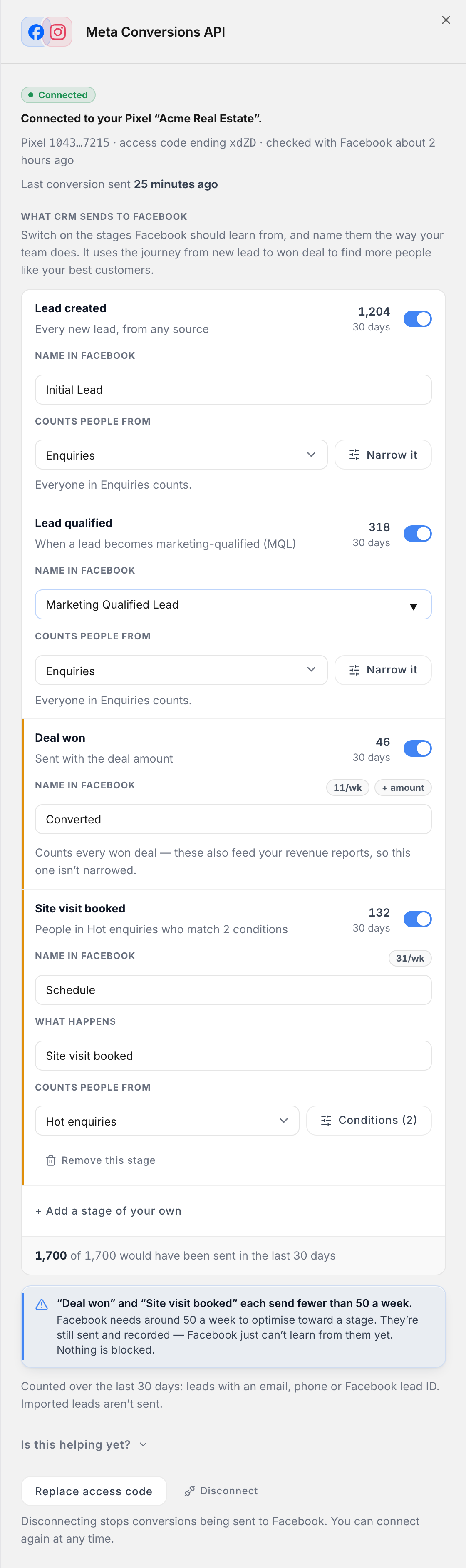
Switch on the stages Facebook should learn from — Lead created, Lead qualified, Deal won (sent with the deal amount) — and name each one the way your team does. Each stage sends once per person, when they enter it. The count on the right is how many would have been sent in the last 30 days.
Say which people a stage counts
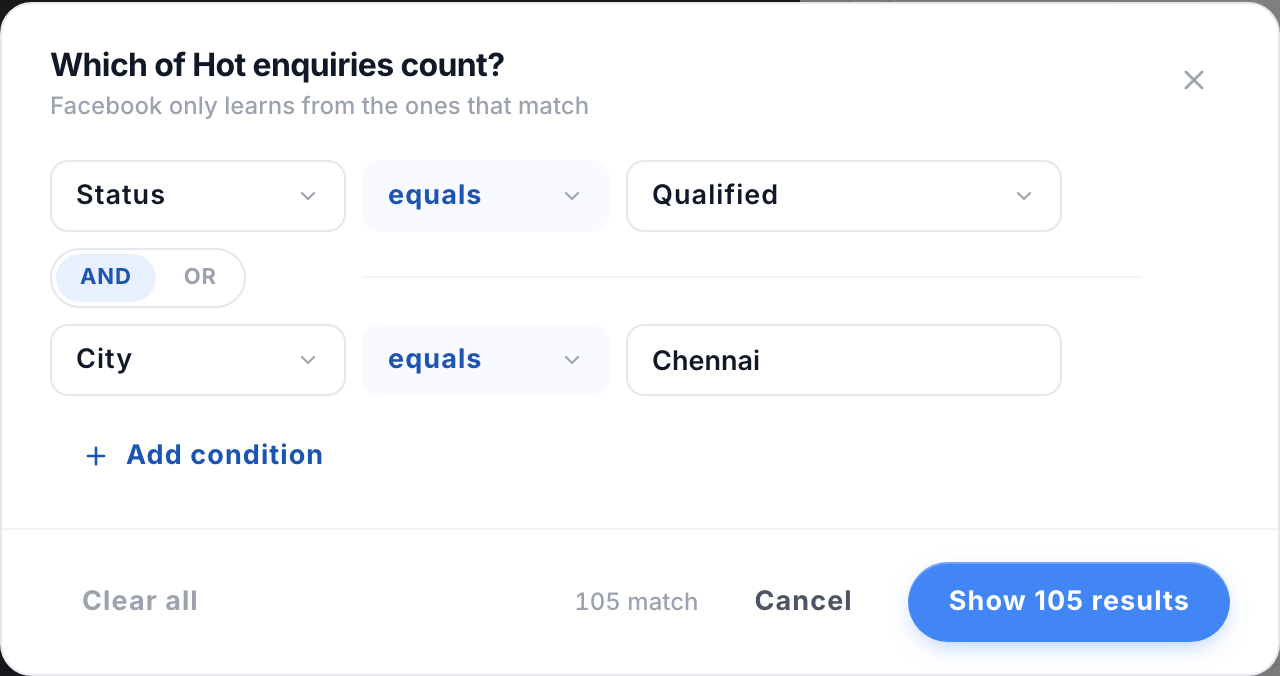
Under Counts people from, pick a profile — every stage can count from a different one. Click Narrow it (or Conditions) to add conditions, using the same filter builder your profiles use: Status equals Qualified, City equals Chennai, and so on. The dialog tells you how many people match right now.
Add a stage of your own
Click + Add a stage of your own for a moment that matters to your business — a site visit booked, a quote accepted. Say what happens, which profile it counts people from, any conditions, and the name Facebook should see. Deal won can’t be narrowed: it also feeds your revenue reports.

Did this guide help?
Still stuck?
Message us from inside Skode, or copy this guide into your AI assistant and ask it anything.